Band controls
Each of the eight bands has the same set of static controls — frequency, gain, Q, filter type, slope, on/off, and routing.
Each of the eight bands has the same set of static controls — frequency, gain, Q, filter type, slope, on/off, and routing. Everything else (dynamics and the per-band character stages) layers on top of these.
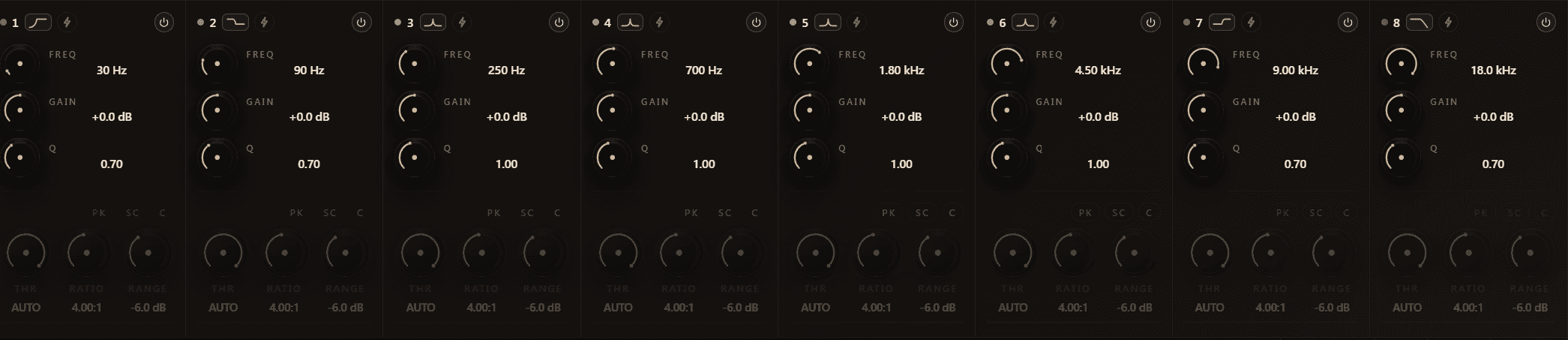
Controls
Frequency
20 Hz to 20 kHz, log-scaled. Drag the band disc horizontally, scroll the freq readout in the disc tooltip, or type a value into the readout.
Gain
−24 dB to +24 dB. Drag the band disc vertically. Resets to 0 dB on double-click.
Q
0.1 to 20. Scroll on the band disc. Lower Q is wider, higher Q is narrower. A Q of about 0.707 gives a maximally-flat shelving response; for surgical work most users sit between 4 and 12.
Filter type
18 shapes — from LowCut/Peak/HighCut to specialty types like Sword and FlatTop. Right-click the band disc to pick. See Filter types for the full list with descriptions.
Slope
Per-band, in dB/oct: 6 / 12 / 18 / 24 / 36 / 48 / 72 / 96 (plus 0 = unity bypass). Right-click the band disc → Slope. Applies to every cascading type — Cuts, Shelves, Peak, Notch, TiltShelf, BandPass, AllPassLow/High. See Filter slopes.
On / Off
Toggles the band. Turning a band off bypasses just that band's contribution to the curve and to the dynamic / character chain.
M / S routing
Stereo / Mid / Side. Each band runs on exactly one of the three buses. See Stereo and M/S.
Channel mask
On surround and Atmos layouts, the 16-bit channel mask gates the band per channel. Default is all-channels-on. See Surround and Dolby Atmos.
Solo
Double-click the band disc, or right-click → Solo. See Solo for the two listening modes.
Tips
- A band that is "off" still keeps its parameters — flipping it on later restores the exact previous setting. Use this for A/B-ing a single band quickly.
- Q higher than about 12 starts to ring audibly on transient material; if you need a narrower notch, pick the Notch filter type (which cascades narrow notches) rather than pushing Q on a Peak band.
- The band number on the disc is just a label — bands have no priority or order in the signal chain. They all see the same input and contribute additively to the curve.
See also
- Filter types
- Filter slopes
- Dynamic EQ for the dynamic side of each band.
EQ display
The EQ display is the primary canvas of Outboard-EQ. It shows the live spectrum, the combined EQ curve, the eight band discs, and any overlays you've enabled.
Filter types
Each band can take one of 18 filter shapes — from the classic mixing toolkit to specialty types built for mastering and resonance work.